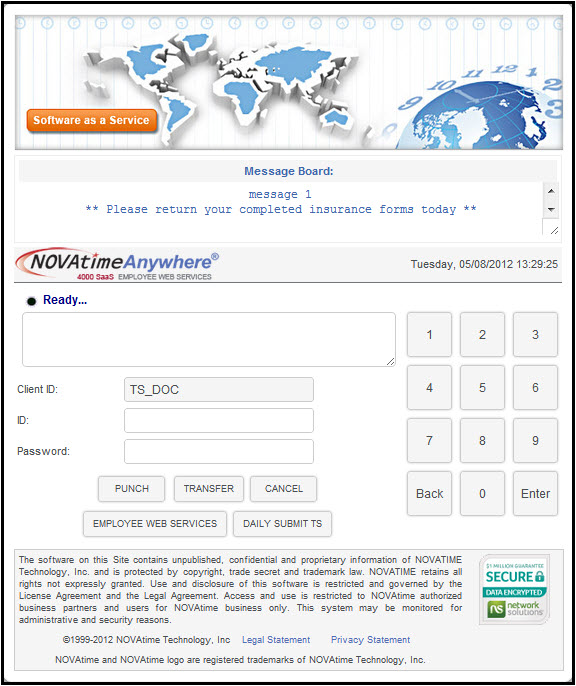
The Login page is used to punch IN/OUT, perform group transfers (Department, Job, etc...), and access the Kiosk features of the NOVAtime 4000 system.
The login screen includes a few sections:
Public Message Section - A public message board. It allows a company to post a message to ALL employees accessing the login screen. It could be anything range from a general greeting to a general reminder.
Clock
Message Board Section - It's the box under  - it's used for the system to communicate whether a transaction is accepted or rejected by the system.
Numeric Keys Section - NOVAtime 4000 SaaS is a touch-screen friendly application. This enables EWS to work with any touch screens.
Action Buttons - This design reduces unnecessary key stokes and wait time. In short, it enables a thin client (or a PC) to act as a time clock. To use the buttons listed below, enter your Employee ID and Password, followed by clicking the action button.
Punch - This enables your browser to act as a time clock with a swipe-and-go setting.
Transfer - This allows an employee to do job transfer at the login screen. Additionally entries are required to capture the transfer information.
Cancel
Activated by entering Employee ID and Password, followed by clicking the Employee Web Services button.
This button may be disabled and not accessible for some employees. It is a configurable function by your system administrator.
To access any part of the EWS program, employees must identify themselves by entering their Employee ID and then Password. They then click on the appropriate function that they wish to perform. Each EWS login screen allows the employee to use the numeric keypad to input their Employee ID number, or they can use the PC mouse to use the numeric keypad located on the login screen.
If you do not see the Employee Web Services button on the login screen, contact your system administrator.
The first time a new employee is granted access to EWS tries to login, they need only enter their Employee ID and then click on any function, and the system will display “rejected” and then prompt them to enter and verify their new password. The minimum length for the password is three (3) characters. Once the new password is entered, click Confirm. The screen will display the “rejected” message once more, but the password has been saved. Now all they need to do is key their new password into the Password entry area, and click on the appropriate button.
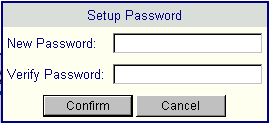
Please note: The employee password can be created before the employee uses the system and it can be changed, on the General tab in the Employee Category in AWS.